
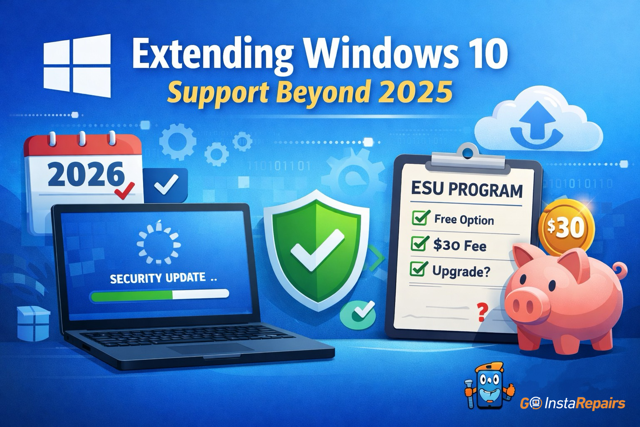
Windows 10 Support Ended: How to Get Extended Security Updates (ESU) in 2026
Windows 10 officially reached its end of support on October 14, 2025. As we move through 2026, any computer without a protection plan is a primary target for ransomware and zero-day exploits. However, you don’t have to scrap your PC just yet. Microsoft’s Extended Security Updates (ESU) program allows you to keep your system safe through 2028—but the enrollment process is famously complex and easy to get wrong.
🛑 Don’t leave your data exposed to 2026 threats.
Confused by Microsoft’s enrollment maze? Goinsta Repairs offers a professional $139 Insta-Flat Rate Security Audit & ESU Setup. We handle the technical enrollment, verify your backups, and ensure your Windows 10 PC is locked down tight—all performed remotely while you watch.
What is Windows 10 ESU and Why is it Mandatory?
The ESU program is a critical “safety net.” It doesn’t add new features, but it provides the monthly security patches required to fix newly discovered vulnerabilities. Without ESU, running Windows 10 today is like leaving your digital front door wide open in a high-crime neighborhood.
- Critical Patching: Essential protection against modern 2026 malware.
- Software Stability: Keep your familiar programs and files exactly where they are.
- Lifespan Extension: Provides a bridge to 2028 before you must transition to Windows 11.
Is Your PC Eligible for ESU?
To qualify for 2026 updates, your computer must be running Version 22H2. You can check your status by navigating to Settings → System → About. If your hardware is outdated or your version is incorrect, the “Enroll” option will not appear, leaving your data at risk.
The Real Cost of Windows 10 ESU in 2026
Microsoft has tiered the first year of protection (covering you until October 2026) with several enrollment paths:
- Standard Home License: Approximately $30 for the first year.
- Microsoft Rewards: Some users can redeem 1,000 points to offset the cost.
- Loyalty Bonus: Users who actively use Windows Backup may see personalized offers for zero-cost enrollment.
How to Enroll in Windows 10 ESU: Step-by-Step
If you are tech-savvy, attempt the enrollment through Windows Update:
- Open Settings and click Update & Security.
- Select Windows Update and look for the “Get updates after support ends” banner.
- Click Enroll Now and follow the prompts to select your payment method.
- Restart your PC and verify the status shows “ESU Enrolled” to receive active patches.
Why Professional Setup is the Safest Choice
Microsoft’s menus can be a maze. One wrong click can lead to failed activations or unauthorized charges. Goinsta Repairs provides a “hands-off” experience for you:
- ✅ Hardware Health Check: We verify your PC is healthy enough for another 2-3 years of service.
- ✅ Guaranteed Enrollment: We handle the ESU technical setup so you don’t have to.
- ✅ Security Hardening: We optimize your antivirus and Windows Backup for a multi-layered defense.
- ✅ Nationwide Support: We service clients in Denver, Houston, Miami, and beyond remotely.
End the Windows 10 “End of Life” stress today.
📞 Call: 720-604-0834 | 🌐 Message Goinsta Repairs Today
Goinsta Repairs is a trusted nationwide provider for Windows security audits, malware removal, and custom PC optimization. Serving major US metros including New York, Atlanta, Dallas, and Los Angeles.
One Comment
Comments are closed.