
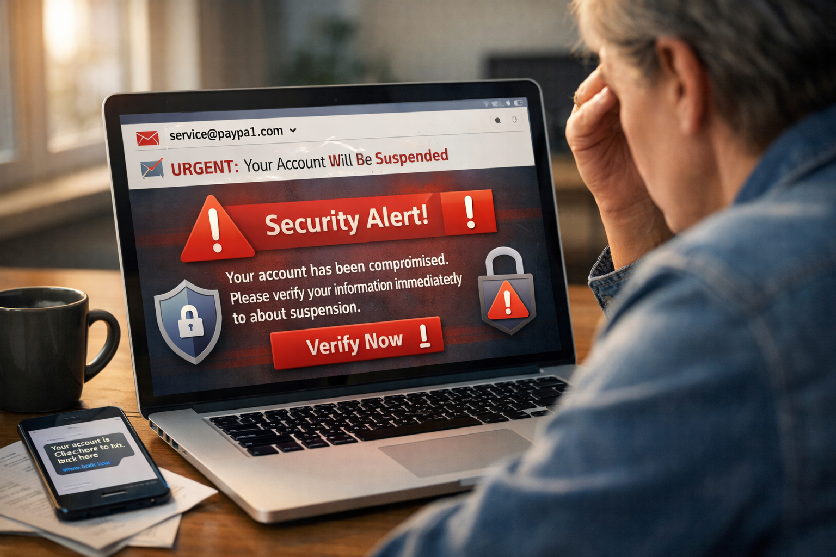
Don’t Take the Bait: Your Complete Guide to Phishing Protection in 2026
Phishing scams are getting harder to detect. In the first quarter of 2025 alone, more than 1 million phishing attacks were observed, and many of today’s scams look polished, urgent, and legitimate. If you use email, text messages, online banking, or social media, knowing how to spot a phishing scam can help you avoid stolen passwords, financial loss, and malware infections.
At Goinsta Repairs, we help everyday computer users recover from suspicious popups, hacked email accounts, malware infections, fake tech support scams, and other online threats through nationwide remote support and onsite service in select areas.
What Is Phishing?
Phishing is a scam designed to trick you into clicking a malicious link, opening a harmful attachment, scanning a dangerous QR code, or giving away personal information such as passwords, banking details, verification codes, or card numbers.
Phishing can arrive through:
- Email messages
- Text messages (smishing)
- Phone calls (vishing)
- QR codes (quishing)
- Fake login pages
- Social media messages
- Popups pretending to be virus alerts or tech support warnings
Why Phishing Is Still So Dangerous
Phishing no longer relies on obvious grammar mistakes or fake-looking designs. Many scams now use realistic branding, AI-written wording, and messages that create urgency. Some impersonate banks, delivery companies, Microsoft, Apple, PayPal, Amazon, the IRS, or even your workplace.
Common goals of phishing scams include:
- Stealing passwords and login credentials
- Capturing credit card or bank information
- Tricking you into sending money
- Installing malware or remote access tools
- Taking over email, social media, or shopping accounts
- Using your compromised account to scam other people
10 Warning Signs of a Phishing Scam
If a message feels off, slow down. These are the most common phishing red flags.
1. The Sender Address Doesn’t Look Right
Don’t trust the display name alone. Check the full email address or domain. A scammer may use a lookalike address such as a misspelled brand name or a random Gmail address pretending to be a company.
2. The Message Creates Panic or Urgency
Phrases like “verify now,” “account suspended,” “payment failed,” “fraud detected,” or “your device is infected” are often used to pressure you into clicking before thinking.
3. It Asks You to Click a Link or Open an Attachment
Be especially careful with unexpected PDFs, ZIP files, Office documents, HTML files, or shortened links. If you were not expecting the message, do not open the attachment.
4. It Uses Generic Greetings
Messages that start with “Dear Customer,” “Dear User,” or “Account Holder” can be suspicious, especially if they claim to be from a company you already do business with.
5. The Link Goes Somewhere Unexpected
On desktop, hover before clicking. On mobile, press and hold to preview the destination. If the link does not clearly go to the company’s real domain, do not open it.
6. It Asks for Passwords or Security Codes
Legitimate companies do not ask you to email or text your password, one-time passcode, or full card details.
7. The Branding Looks “Almost” Right
Fake login pages often copy real logos and colors, but the spacing, wording, layout, or domain still feels slightly off.
8. You Get a Text About a Package, Bank Alert, or Unpaid Toll
Text-based phishing is extremely common. Fake package delivery problems, fake fraud alerts, unpaid toll notices, and job scams are among the most frequently reported text scams.
9. It Contains a QR Code
Some phishing messages now use QR codes instead of regular links to bypass filters and get you onto a malicious site from your phone.
10. It’s Too Good to Be True
Prize notifications, surprise refunds, unbelievable discounts, guaranteed investment returns, and easy money offers are classic scam bait.
Common Types of Phishing in 2026
- Email phishing: fake account alerts, invoices, shared files, and login notices
- Smishing: text messages about deliveries, bank fraud, tolls, or verification
- Vishing: phone calls from someone pretending to be your bank, Microsoft, or a family member
- Quishing: QR codes that send you to a fake login or payment page
- Spear phishing: targeted scams that use your name, job, company, or social media details
- Tech support scams: fake virus warnings or calls claiming your computer is infected
What to Do If You Clicked a Phishing Link
If you clicked but did not enter any information, act quickly anyway.
- Close the page immediately.
- Disconnect from the internet if a file started downloading or something unusual opened.
- Delete any unexpected downloads without opening them.
- Run a full antivirus and anti-malware scan.
- Update your browser, operating system, and security software.
- Watch for suspicious popups, redirects, or login prompts.
If you entered your password, card details, or personal information, do this next:
- Go directly to the real website by typing the address yourself
- Change the compromised password immediately
- Change any other accounts using the same password
- Enable two-factor authentication
- Contact your bank or card issuer if payment information was submitted
- Check your email account recovery settings and recent sign-in activity
- Monitor your accounts for fraud or unauthorized logins
How to Protect Yourself from Phishing
- Do not click links in unexpected emails or texts. Open the company website yourself instead.
- Use strong, unique passwords for every account.
- Enable two-factor authentication on email, banking, shopping, and social media accounts.
- Keep Windows, macOS, browsers, and apps updated.
- Use reputable security software and keep it current.
- Be extra cautious with QR codes from printed signs, emails, or text messages.
- Teach family members what phishing looks like, especially seniors and less tech-savvy users.
- Back up important files regularly in case a phishing attack leads to malware or ransomware.
Best Security Tools After a Phishing Scare
If your computer has been acting strangely after opening an email, text, or popup, a full scan is a smart next step. Here are a few security tools available from our store:
- Trend Micro for strong day-to-day protection
- AVG Ultimate for all-in-one protection and privacy features
- Malwarebytes for targeted malware removal
- ESET Home Security Essential for modern home device protection

When to Call a Professional
You should get professional help if:
- Your browser keeps redirecting to strange websites
- You see repeated popups or fake virus alerts
- Your email, Facebook, or other accounts were accessed without permission
- Your antivirus found threats but you are not sure everything was removed
- Your computer became very slow after opening a suspicious link or attachment
- You entered banking, payment, or password information into a suspicious site
- You want your device checked before the problem gets worse
Goinsta Repairs can help with malware checks, suspicious browser behavior, phishing cleanup, email compromise guidance, antivirus setup, and general computer security support.
Final Thoughts
The best defense against phishing is to slow down, verify independently, and avoid clicking first. If a message claims there is a problem with your account, delivery, payment, or computer, go to the official website yourself or contact the company using a phone number you know is real.
If you think your computer or account may already be compromised, don’t wait for the problem to spread. Getting help early can prevent a much larger repair bill and reduce the risk of data loss, account takeover, or identity theft.
Spring Cleaning 2026: Why Your PC is Slow and How
If you feel like your computer has become noticeably slower since the start of…
Email Spoofing vs. Phishing: How to Protect Yourself
Is that email real? 🛡️ Learn the simple difference between spoofing and phishing to…

Stop Spam Before It Hits Your Inbox: How to Use
Stop spam! 🦆 Learn to use DuckDuckGo Email Protection to block trackers and hide…
Is Your Printer Holding Your Documents Hostage? Why You’re Being
Stop paying rent for the printer you bought! Learn how HP, Epson, and Canon…
Computer Security Alerts for March 2026: How to Stay Safe
Worried about fake Microsoft alerts, scam texts, suspicious pop-ups, or a slow computer? Learn…
Top 30 Most Common Passwords 2025: Is Yours on This
Most common passwords 2025 revealed—123456 still #1. Goinsta Repairs shows you how to stay…
High-Severity Chrome Vulnerability Exposed AI Assistant to Hijacking – What
CVE-2026-0628: Gemini flaw let malicious extensions hijack AI assistant, access cameras, microphones & files….
Are browser extensions safe?
Are browser extensions safe? Learn the biggest security risks, warning signs, and how GoInsta…
Don’t Take the Bait: Your Complete Guide to Phishing Protection
Protect your family from phishing scams with simple email safety checks, what to do…