Don’t Take the Bait: Your Complete Guide to Phishing Protection in 2026
Phishing attacks are at an all-time high, with over 1 million phishing attempts recorded in the first quarter of 2025 alone. Understanding how to protect yourself and your family from these increasingly sophisticated scams is more critical than ever. At Goinsta Repairs, we’ve seen firsthand how devastating these attacks can be—and we’re here to help you stay safe.
Understanding the Phishing Threat Landscape in 2026
Phishing isn’t what it used to be. Gone are the days when you could easily spot a scam by poor grammar or obvious fake email addresses. Today’s cybercriminals use artificial intelligence, social engineering, and multi-channel approaches to create convincing attacks that fool even tech-savvy users.
Alarming Statistics You Need to Know
The numbers paint a sobering picture of the current threat environment:
- 91% of all cyberattacks begin with a phishing email.
- 31% of phishing emails are opened by targeted victims.
- 54% of phishing sites now use HTTPS to appear legitimate.
- The average cost of a phishing-related data breach is $4.76 million.
- Individual victims lose an average of $200 per scam.
- Mobile phishing attacks increased by 50% year-over-year.
New Phishing Techniques in 2026
Cybercriminals have evolved their tactics significantly. Here are the most dangerous trends we’re seeing:
AI-Powered Personalization
Attackers now use generative AI to scrape publicly available data from LinkedIn, company websites, and social media. This allows them to craft messages that closely resemble legitimate communications from colleagues, suppliers, or trusted organizations.
QR Code Phishing (Quishing)
QR code phishing saw a 50% increase in Q4 2023 and continues to grow. Criminals embed malicious QR codes in emails, printed materials, or even legitimate-looking parking meters and restaurant tables.
Voice Phishing (Vishing)
Voice phishing increased by 260% in the last two years. AI voice cloning technology now enables scammers to convincingly impersonate executives, IT teams, family members, and trusted contacts.
SMS Phishing (Smishing)
Text message phishing represents 12% of all social engineering attempts and is particularly effective because people tend to trust text messages more than emails.
Multi-Factor Authentication (MFA) Fatigue Attacks
Attackers bombard victims with repeated MFA push notifications until they approve one out of frustration—a technique that increased by 70% in 2023.
The 10 Warning Signs of a Phishing Attempt
Learning to recognize phishing attempts is your first line of defense. Use this S.E.C.U.R.E. method to evaluate suspicious communications:
1. Suspicious Sender Address or Domain
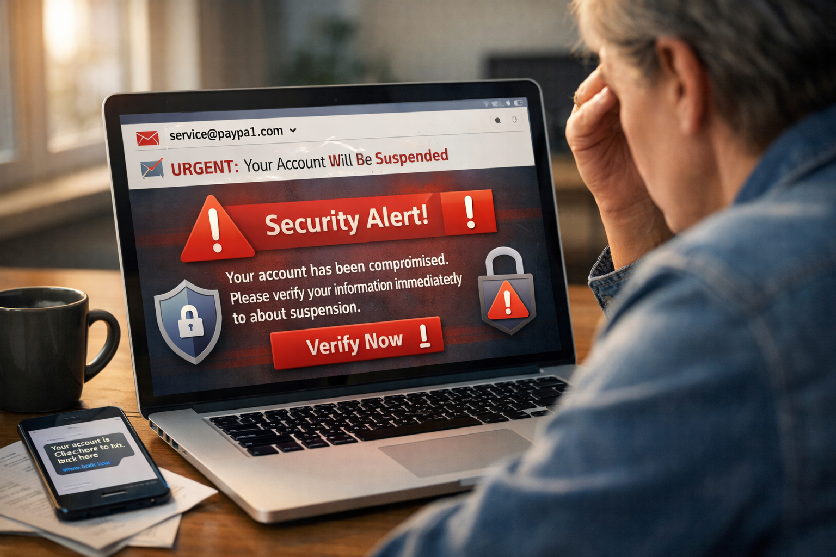
Always examine the actual email address, not just the display name. Scammers use addresses that are one character off from legitimate ones, such as support@paypa1.com instead of support@paypal.com, or service@amazon-security.net instead of an official Amazon domain.
How to check:
- Hover over the sender’s name to reveal the actual email address
- Look for misspelled domain names
- Watch for generic domain extensions (@gmail.com instead of @company.com)
- Verify mismatched sender and domain names
2. Urgent or Threatening Language
Phishing emails frequently employ scare tactics designed to make you act without thinking. Common urgent phrases include:
- “Your account will be closed in 24 hours!”
- “URGENT: Virus detected on your network”
- “Your email account has been compromised”
- “Official Notice: Your tax return is being audited”
- “Suspicious activity detected—verify immediately”
Creating a false sense of urgency is deliberate. Scammers know that when you’re panicked, you’re less likely to scrutinize the message carefully.
3. Unexpected Attachments or Links
Legitimate companies rarely send unsolicited attachments[5]. Be especially cautious of:
- Office files (.docx, .xlsx, .pdf) from unknown senders—48% of malicious email attachments are office files
- Executable files (.exe, .zip, .rar)
- HTML attachments that hide malicious code
- Links disguised using URL shorteners (40% of phishing links use these)
4. Generic Greetings
Companies you do business with know your name and use i. Be suspicious of emails that begin with:
- “Dear Customer”
- “Dear Valued Member”
- “Hello User”
- “Attention Account Holder”
5. Poor Grammar or Formatting
While AI has made phishing emails more polished, many still contain telltale signs:
- Misspellings and typos
- Awkward phrasing or sentence structure
- Inconsistent fonts and formatting
- Low-quality or distorted images and logos
- Mismatched branding that deviates from official communications
6. Requests for Sensitive Information
The golden rule: Legitimate companies will NEVER ask for sensitive information via email. This includes:
- Passwords or security questions
- Social Security numbers
- Credit card information
- Bank account details
- One-time security codes
7. Mismatched URLs (The Hover Trick)
Before clicking any link, hover your mouse cursor over it without clicking. A small preview box will show you the actual destination URL, usually in the bottom-left corner of your browser window.
What to look for:
- URLs that don’t match the supposed sender (clicking “PayPal” but seeing “secure-paypl-login.net“)
- Extra words, numbers, or characters in the domain
- HTTP instead of HTTPS (though 90% of phishing sites now use HTTPS to appear legitimate)
- Suspicious subdomains like “amazon.phishing-site.com” (the real domain is phishing-site.com, not amazon.com)
8. Fake Login Pages or Branding Inconsistencies
Attackers create convincing replicas of legitimate websites. Warning signs include:
- Slight variations in logos or color schemes
- Different layouts from the official site
- Missing security certificates or trust badges
- Unusual login requirements
- Simplified pages with minimal functionality
9. Odd Timing or Context
Be alert to messages that arrive:
- Outside of normal business hours (50% of phishing emails are sent after hours)
- Without any prior correspondence or relationship
- About accounts you don’t have or services you don’t use
- Asking you to “confirm” information you never provided
10. Too-Good-to-Be-True Offers
If it sounds too good to be true, it probably is. Common lures include:
- “You’ve won a prize!” or “Congratulations, you’ve been selected”
- Unrealistic work-from-home job opportunities
- Investment opportunities with guaranteed high returns
- Free gift cards or cryptocurrency giveaways
- Deep discounts on luxury goods or electronics
What to Do If You Click a Phishing Link
Even with the best precautions, mistakes happen. If you’ve clicked on a suspicious link, acting quickly can minimize the damage significantly.
Immediate Actions (First 5 Minutes)
1. Don’t Enter Any Information
If the link takes you to a page asking for details, do NOT type anything. Close the page immediately:
- Desktop: Press Ctrl + W (Windows) or Command + W (Mac)
- Mobile: Force close the app or swipe it away
- Do NOT click “Cancel” or “Go Back”—these may trigger malicious scripts
2. Disconnect from the Internet
Cutting your internet connection prevents malware from:
- Completing its download
- Communicating with command-and-control servers
- Spreading to other devices on your network
- Stealing and transmitting your data
Turn on Airplane Mode (mobile) or disable Wi-Fi and unplug ethernet cables (desktop).
3. Stop Any Automatic Downloads
Check your Downloads folder immediately and delete any files that appeared after clicking the link. Don’t open them—just delete them.
Short-Term Actions (First Hour)
4. Run a Full Malware Scan
One of the most important steps is to run a comprehensive security scan with reliable antivirus software. Even if nothing seems wrong, malware can hide in your system.
Recommended antivirus solutions for 2026:
- Trend Micro: Best for deep malware detection with minimal system impact
- AVG Ultimate: Best all-in-one security with identity theft protection and VPN
- Malwarebytes: Excellent for targeted malware removal
- ESET Home Security Essential: Modern security designed to protect your devices from every angle
For thorough cleaning after malware infection:
- Boot into Safe Mode before scanning
- Run full scans with both your primary antivirus and a secondary tool like Malwarebytes
- Enable “Scan for Rootkits” option if available
- Consider a full system restore if infection is severe
5. Change Your Passwords
If you entered credentials on a phishing site, change those passwords immediately:
- Go directly to the official website (type the URL yourself)
- Change the password for the compromised account
- Change passwords for any other accounts using the same password
- Use strong, unique passwords for each account
- Consider using a password manager like Bitwarden
6. Enable Two-Factor Authentication
Add an extra layer of security to all accounts containing sensitive information. Even if attackers steal your password, they won’t be able to access your accounts without the second authentication factor.
Long-Term Actions
7. Monitor Your Accounts
Watch for suspicious activity for at least 30 days:
- Unfamiliar login attempts or locations
- Unauthorized purchases or transactions
- Changed account settings or contact information
- New devices or apps authorized to access your accounts
8. Report the Phishing Attempt
Help protect others by reporting the attack:
- Forward phishing emails to the FTC at spam@uce.gov
- Report to the impersonated company (e.g., phishing@paypal.com for PayPal)
- File a complaint with the Internet Crime Complaint Center (IC3) at https://www.ic3.gov
- In the UK, report to the National Cyber Security Centre
9. Warn Your Contacts[19]
If the phishing attack came through your compromised account, notify friends, family, and colleagues that your account was hacked. Scammers often use compromised accounts to target the victim’s contact list.
Essential Prevention Strategies
Prevention is always better than cure. Implement these best practices to protect yourself and your family from phishing attacks.
For Email Security
- Never click links in emails—type website addresses directly into your browser
- Use spam filters on your email client to block obvious phishing attempts
- Enable built-in phishing filters in your email provider and browser
- Verify sender identity before responding to any request, especially urgent ones
- Report suspicious emails using your email provider’s phishing report feature
For Password Security
- Use strong, unique passwords for every account—never reuse passwords
- Employ a password manager like Bitwarden to create and store complex passwords securely
- Enable two-factor authentication (2FA) on all accounts that offer it
- Change passwords regularly, especially after any security incident
- Avoid password recovery questions based on easily researched personal information
For Device Security
- Keep software updated—enable automatic updates for your operating system and all applications
- Install reputable antivirus software and keep it current
- Use firewalls to add an extra layer of network protection
- Back up your data regularly to mitigate ransomware threats
- Avoid using public Wi-Fi for sensitive transactions or use a VPN
For Behavioral Security
- Think before you click—take time to evaluate suspicious communications
- Never scan QR codes unless you absolutely trust the source
- Be suspicious of unsolicited communications via email, text, or phone
- Verify requests independently—if your bank emails you, call them directly using a number from their official website
- Educate family members, especially seniors and children who are frequent targets[
Special Considerations for Protecting Vulnerable Family Members
Seniors are disproportionately targeted by phishing scams[3]. If you have elderly family members, help them by:
- Setting up and maintaining their security software
- Teaching them the “hover trick” to check links before clicking
- Establishing a family code word to verify legitimate communications
- Encouraging them to consult with you before responding to urgent requests
- Setting up account monitoring and alerts on their behalf
- Regularly checking their devices for suspicious software
Why Multi-Factor Authentication Is Essential
Multi-factor authentication (MFA) is one of the most effective defenses against phishing. Even if you accidentally provide your password to a phishing site, attackers cannot access your account without the second authentication factor.
Types of MFA
When Professional Help Is Needed
Sometimes, despite your best efforts, the situation requires professional intervention. Contact Goinsta Repairs or a trusted local IT service if:
- Your antivirus detected multiple threats and you’re unsure if they’re all removed
- Your computer is behaving strangely (slow performance, unexpected popups, programs opening on their own)
- You entered financial information on a phishing site
- You suspect your email or social media accounts are compromised and sending spam
- You need help setting up comprehensive security for your family’s devices
- You want professional monitoring and maintenance to prevent future attacks
Professional computer repair services can:
- Perform deep system cleaning and malware removal
- Restore compromised systems to safe, working condition
- Install and configure enterprise-grade security software
- Set up proper backups and recovery solutions
- Provide ongoing monitoring and maintenance
- Educate you and your family on cybersecurity best practices
The Bottom Line: Vigilance Is Your Best Defense
Phishing attacks will only become more sophisticated as criminals leverage AI and other advanced technologies. However, by staying informed, maintaining healthy skepticism, and following the security practices outlined in this guide, you can significantly reduce your risk.
Remember these key takeaways:
- Think before you click—slow down and evaluate every suspicious message
- Use the S.E.C.U.R.E. method to identify phishing attempts
- Enable two-factor authentication on all important accounts
- Keep your software and devices updated
- If you make a mistake, act immediately to minimize damage
- Don’t hesitate to seek professional help when needed
At Goinsta Repairs, we’re committed to keeping our Ashburn community safe from cyber threats. Whether you need help recovering from a phishing attack, setting up robust security systems, or simply want peace of mind that your family’s devices are protected, we’re here for
Don’t Take the Bait: Your Complete Guide to Phishing Protection
Protect your family from phishing scams with simple email safety checks, what to do…
Ransomware part II
Ransomware is malicious software that locks your files and demands payment to restore access….
What is ransomware?
Ransomware is malicious software that hijacks your data, blocks access to your device, and…
WhatsApp Blocked in Russia: What It Means for Secure Messaging
Russia blocks WhatsApp, tightening digital controls and impacting communication nationwide…
Update Roulette: A Repair Tech’s Take on How Microsoft Turned
At Goinsta Repairs, we pride ourselves on transparency with our customers. Today, we need…
Quick Guide: Troubleshooting a Clogged Epson WorkForce Pro WF-7620 Printer
Epson WorkForce Pro WF-7620 printer troubleshooting…
Is Your Computer Slow? Here’s What’s Really Going On (And
Your computer lags—slow boot times, crawling apps, endless waits. Startup bloat, low RAM, old…
Best VPN for Everyday: Privacy, Speed & ISP Tracking Explained
A VPN hides your online activity from your ISP, boosts privacy, and only slightly…
Is Your Windows 10 PC at Risk? Here’s How to
Windows 10 support ended, but you can still get security updates in 2026….
Additional Resources
For more information on protecting yourself from phishing and other cyber threats, visit:
- Federal Trade Commission – Consumer Information: https://consumer.ftc.gov/
- Internet Crime Complaint Center (IC3): https://www.ic3.gov
- Anti-Phishing Working Group (APWG): https://apwg.org/
- National Cyber Security Centre (UK): https://www.ncsc.gov.uk/
- Microsoft Security: https://support.microsoft.com/en-us/windows/protect-yourself-from-phishing-0c7ea947-ba98-3bd9-7184-430e1f860a44
References
[1] Anti-Phishing Working Group. (2025). Phishing Activity Trends Reports – 1st Quarter 2025. https://apwg.org/trendsreports
[2] Adaptive Security. (2025). How to Spot a Phishing Email in 2026. https://www.adaptivesecurity.com/blog/how-to-spot-a-phishing-email
[3] WiFi Talents. (2026). Phishing Scams: Data Reports 2026. https://wifitalents.com/phishing-scams-statistics/
[4] Cybertec Security. (2026). Why Phishing Is Still the #1 Cyber Threat in 2026. https://info.cybertecsecurity.com/why-phishing-is-still-the-1-cyber-threat-in-2026
[5] CrowdStrike. (2025). How to Spot a Phishing Email. https://www.crowdstrike.com/en-us/cybersecurity-101/social-engineering/how-to-spot-a-phishing-email/
[6] Southern New Hampshire University. (2025). Types of Phishing: Tips to Prevent, Spot and Report Scam Emails. https://www.snhu.edu/about-us/newsroom/stem/types-of-phishing
[7] AhnLab ASEC. (2026). January 2026 Trends Report on Phishing Emails. https://asec.ahnlab.com/en/92621/
[8] Hoxhunt. (2025). The 14 Phishing Red Flags Your Users Need to Know (2026). https://hoxhunt.com/blog/phishing-red-flags
[9] Kaspersky. (2020). Phishing Scams & Attacks – How to Protect Yourself. https://usa.kaspersky.com/resource-center/preemptive-safety/phishing-prevention-tips
[10] Cybersecurity Guide. (2026). How to spot and protect yourself from a phishing attack. https://cybersecurityguide.org/resources/phishing/
[11] Go Leading IT. (2026). How To Report Phishing Emails, Identify, and Avoid Them in 2026. https://goleadingit.com/blog/dont-take-the-bait-how-to-report-phishing-emails/
[14] Microsoft Support. (2025). Protect yourself from phishing. https://support.microsoft.com/en-us/windows/protect-yourself-from-phishing-0c7ea947-ba98-3bd9-7184-430e1f860a44
[16] Norton. (2025). Clicked on a phishing link? Here’s what to do. https://us.norton.com/blog/online-scams/i-clicked-on-a-phishing-link
[17] Southern New Hampshire University. (2025). Types of Phishing: Tips to Prevent, Spot and Report Scam Emails. https://www.snhu.edu/about-us/newsroom/stem/types-of-phishing
[18] YouTube – Best Antivirus for PC 2026. (2026). https://www.youtube.com/watch?v=9XiyVmfp-9c
[19] Surfshark. (2026). What to do if you clicked on a phishing link. https://surfshark.com/blog/clicked-on-a-phishing-link
[20] UC Berkeley Security. Cleaning an Infected Computer of Malware. https://security.berkeley.edu/education-awareness/cleaning-infected-computer-malware
[21] Reddit – r/it. (2026). What is the best antivirus software for PC in 2026? https://www.reddit.com/r/it/comments/1r6yszf/what_is_the_best_antivirus_software_for_pc_in_2026/
[24] YouTube. (2026). Best Antivirus 2026. https://www.youtube.com/watch?v=JJao8Q8ZZiA
[25] Kaspersky. (2022). What to do after a phishing attack. https://www.kaspersky.com/resource-center/threats/handling-phishing-attacks
[26] Federal Trade Commission. (2026). Malware: How To Protect Against, Detect, and Remove It. https://consumer.ftc.gov/articles/malware-how-protect-against-detect-and-remove-it
[27] OpenEDR. (2025). Best Virus Protection Software for 2026. https://www.openedr.com/blog/best-virus-protection-software/
[29] ESET. (2025). OK, computer: How to clean out your PC after malware. https://www.eset.com/blog/en/home-topics/device-protection/how-to-clean-pc-after-malware/
[30] Reddit – r/cybersecurity_help. (2026). What antivirus actually makes sense in 2026? https://www.reddit.com/r/cybersecurity_help/comments/1quzmym/what_antivirus_actually_makes_sense_in_2026/