
macOS Tahoe Review: Why Apple’s Newest Upgrade Matters for You
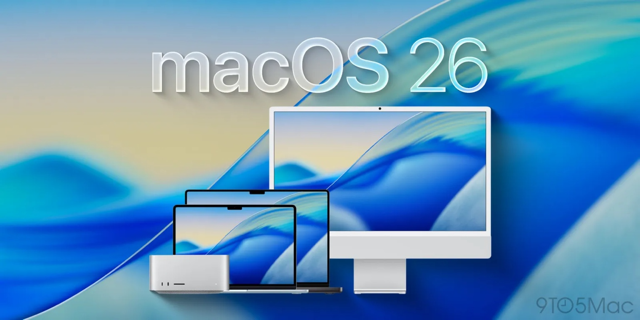
Apple’s macOS Tahoe represents the boldest leap forward for Macs in more than a decade. With its striking Liquid Glass design, new productivity tools, and deeper integration with iOS features, Tahoe gives both casual users and professionals a more flexible, efficient, and visually stunning experience.
At Goinsta Repairs, we see first-hand how software updates impact Apple devices in the real world. Whether you’re a power user or simply want your Mac to run its best, understanding what’s new in Tahoe—and how it affects older Macs—is essential before you upgrade.
Why Tahoe Stands Out
- Elegant Liquid Glass Design: Apple has overhauled macOS with a semi-translucent, colorful interface inspired by its Vision Pro headset. It’s more cohesive, customizable, and vibrant than any previous version.
- Boosted Productivity via Spotlight: Hundreds of new search and action shortcuts let you launch apps, perform tasks, or even recover clipboard history faster than ever—no third-party utilities required.
- iOS Features on Mac: The full Phone app (with Hold Assist and Call Screening), Live Activities, and real-time translation bring the best of iOS to your desktop.
- Enhanced Automations: Shortcuts now support advanced triggers, making workflow automation simple for everyday users.
- Security & Performance: Disk image format changes promise faster virtualization—good news if you run Windows or Linux on your Mac.
Tip from Goinsta Repairs: If your Mac feels sluggish or you’re unsure about its compatibility, consult a certified repair shop like ours. We can run diagnostics, back up your system, and even test new features before you commit to the upgrade.
Compatibility: Can Your Mac Run Tahoe?
You can install macOS Tahoe free on any Apple silicon Mac (M1 through M4). Some late-generation Intel models—the 2020 13-inch MacBook Pro, 2019 16-inch MacBook Pro, 2020 27-inch iMac, and 2019 Mac Pro—are also supported. However, Tahoe is the last macOS version for Intel-based Macs, and Apple has announced it will restrict the Rosetta 2 emulation layer in the version after Tahoe.
If you’re running mission-critical apps on an older Intel Mac, this is the time to plan your transition. (Apple’s own support page outlines all compatible models.)
Design & Customization: More Than a Fresh Coat of Paint
Liquid Glass makes macOS more modern—but also more adjustable. You can now recolor folders, add symbols and emojis, and even sync folder colors with Finder Tags. Widgets can live right on your desktop with transparency controls. These touches put macOS ahead of Windows and other desktop OSes in native customization.
Still, some users may find the new semi-transparent menu bar distracting. Fortunately, you can disable this in Settings.
Calls, Messages & Notifications: True Parity With iOS
The new Phone app allows you to leave your iPhone in another room while making and screening calls directly from your Mac. Live Activity notifications (think rideshares or deliveries) now pop up on your desktop. Messages supports real-time translation and introduces features like custom chat backgrounds and spam filtering.

Stop Spam Before It Hits Your Inbox: How to
Stop spam! 🦆 Learn to use DuckDuckGo Email Protection to block trackers and hide…

Is Your Printer Holding Your Documents Hostage? Why You’re Being
Stop paying rent for the printer you bought! Learn how HP, Epson, and Canon…

Computer Security Alerts for March 2026: How to Stay Safe
Worried about fake Microsoft alerts, scam texts, suspicious pop-ups, or a slow computer? Learn…

Top 30 Most Common Passwords 2025: Is Yours on This
Most common passwords 2025 revealed—123456 still #1. Goinsta Repairs shows you how to stay…

High-Severity Chrome Vulnerability Exposed AI Assistant to Hijacking – What
CVE-2026-0628: Gemini flaw let malicious extensions hijack AI assistant, access cameras, microphones & files….

Are Browser Extensions Safe? What You Need to Know Before
Are browser extensions safe? Learn the biggest security risks, warning signs, and how GoInsta…
Search & Automations: A Productivity Dream
Spotlight now organizes apps like an iOS App Library and lets you perform “Quick Actions” such as sending an email, creating a folder, or starting a timer—all without opening an app.
Shortcuts can trigger on conditions like battery level, incoming emails, or new files in a folder. This bridges the gap between power users and everyday workflows.
External Resource: Apple’s Shortcuts User Guide explains how to build automations step-by-step.
Apple Intelligence: Promising but Not Perfect
Tahoe brings Apple’s “Apple Intelligence” features—text generation, proofreading, summarizing—directly into apps like Mail and Messages. While still developing, it’s a glimpse at Apple’s AI future. Live Translation across FaceTime, Messages, and Phone is especially impressive, rivaling Google Translate for everyday conversations.
Under-the-Hood Improvements
From customizable Terminal themes to Safari’s stronger anti-fingerprinting protections, Tahoe hides dozens of small but meaningful updates. Developers will appreciate the faster Apple Sparse Image Format (ASIF), which accelerates virtualization for Windows or Linux. A new Repair Assistant (under Parts & Services in System Settings) helps calibrate and test components after a hardware replacement—a welcome addition for service providers like Goinsta Repairs.
How to Try macOS Tahoe Safely
If you rely on your Mac for work, consider testing Tahoe on a separate volume before fully upgrading. Using Disk Utility, you can create a new APFS volume, install Tahoe there, and switch between your current macOS and Tahoe from the Startup Disk menu. This lets you explore new features without risking downtime.
Need help with backups, dual-booting, or post-upgrade troubleshooting? Goinsta Repairs offers expert support for Apple systems—ideal if you’re unsure about the transition.
Bottom Line
macOS Tahoe is the most visually striking and productivity-oriented Mac update in years. With its modern design, new automations, and deeper iOS integration, it sets a high bar for desktop operating systems. For most Apple silicon users, upgrading is a no-brainer. If you’re on an older Intel Mac, start planning your migration now.
Stay Updated: Follow Goinsta Repairs for the latest Apple tips, upgrade guides, and repair insights. For additional resources, see Apple’s official macOS page or trusted security sources like PcMag.