
How to Switch from Windows to Linux Mint: Complete Installation Guide
Linux Mint Installation Made Simple: Free, Fast & Bloatware-Free Beginner’s Guide
If you’ve been frustrated with Windows—forced updates, bloatware, security concerns, or just the constant expense—there’s another option that’s gaining popularity: Linux Mint. Unlike other Linux distributions that require technical expertise, Linux Mint is specifically designed for everyday users switching from Windows. It looks familiar, works intuitively, and solves many of the problems that plague Windows users.
This article explains what Linux Mint. is, why it’s becoming an attractive alternative to Windows, how to install it, and whether it’s right for you. Whether you’re a Windows refugee or just curious about alternatives, this guide will help you understand why thousands of users are making the switch.
What Is Linux Mint?
Linux Mint. is a free operating system based on Linux—an open-source alternative to Windows and macOS. But unlike some Linux versions that require command-line knowledge, Linux Mint. is designed to be user-friendly for people coming from Windows.
Key Facts About Linux Mint.
- ✅ Completely free – No licensing fees, no paid upgrades
- ✅ Based on Ubuntu – Which means it’s stable and well-supported
- ✅ Looks like Windows – Familiar interface with a taskbar, start menu, and file manager
- ✅ Pre-installed software – Comes with all the basics you need (web browser, email, office suite, media players)
- ✅ Regularly updated – Security patches and improvements released regularly
- ✅ Community-driven – Free support from millions of users worldwide
In Simple Terms:
Think of Linux Mint as a completely redesigned version of Windows that’s faster, more secure, doesn’t spy on you, and doesn’t cost anything. It works the same way you’re used to, but without the frustrations.
Why Linux Mint Is Gaining Popularity (Especially After Windows Failures)
Remember those Windows failures we discussed in our previous article? Linux Mint solves many of them:
1. No Forced Updates
With Linux Mint, you control when updates happen. No more surprise restarts in the middle of work. You decide when your computer restarts, period.
2. No Bloatware
Linux Mint comes clean. No pre-installed games, trial software, or sponsored apps. What you see is what you get—no hidden junk slowing things down.
3. Privacy First
Linux Mint doesn’t collect data about your computer use. There’s no Cortana listening, no data being sent to a company’s servers. Your computer belongs to you.
4. Faster Performance
Many users report that Linux Mint runs noticeably faster than Windows, even on older computers. The same machine that felt sluggish on Windows 11 can feel snappy on Linux Mint.
5. Better Security
Linux has been the operating system of choice for servers and security professionals for decades. It’s inherently more secure than Windows, and malware targeting Linux is exponentially rarer than Windows malware.
6. It’s Free
No licensing fees, no paying for upgrades, no surprise costs. Ever.
7. No Hardware Lock-In
Unlike Windows 11’s strict requirements, Linux Mint runs on almost any computer—including those old machines Windows 11 rejected.
Linux Mint vs. Windows: Side-by-Side Comparison
| Feature | Linux Mint | Windows 11 |
|---|---|---|
| Cost | Free | $120-200+ |
| Updates | User-controlled | Forced by Microsoft |
| Bloatware | None | Significant |
| Privacy | Excellent | Concerning |
| Speed | Very Fast | Moderate |
| Security | Excellent | Good |
| Learning Curve | Minimal for Windows users | N/A |
| Software Available | Thousands of free programs | Mix of free and paid |
| Support | Community-driven (free) | Microsoft (paid often required) |
| Hardware Requirements | Very low | Strict (TPM 2.0, etc.) |
Is Linux MintRight for You? (Honest Assessment)
Linux Mint is perfect for you if:
- ✅ You primarily use web browsers (Gmail, Google Docs, Facebook, YouTube)
- ✅ You work with email and documents
- ✅ You watch videos and listen to music
- ✅ You edit photos casually
- ✅ You want better privacy and security
- ✅ You’re frustrated with Windows
- ✅ You want to save money
- ✅ You’re using an older computer that Windows 11 rejected
You might want to stick with Windows if:
- ❌ You use specialized software that only runs on Windows (some design software, specific business applications)
- ❌ You’re heavily invested in Microsoft Office (though LibreOffice is a great alternative)
- ❌ You play demanding Windows-only games
- ❌ You need software that only has Windows versions
- ❌ Your workplace requires Windows
The Good News: Most everyday users fall into the “perfect for you” category. If you primarily use the internet, email, and documents, Linux Mint will work beautifully.
How to Install Linux Mint (It’s Easier Than You Think)
One of the biggest myths about Linux is that installation is complicated. Linux Mint‘s installer is actually simpler than Windows installation. Here’s the basic process:
Step 1: Get Linux Mint
- Visit Linux Official website
- Download Linux Mint (the file is about 2-3GB)
- You’ll need a USB flash drive (8GB or larger) or a blank DVD
Step 2: Create Installation Media
- Use a tool like Rufus (Windows) or Balena Etcher (works on Mac and Windows) to write Linux Mint to your USB drive
- This process is automated—just select the file and the USB drive, click go, and wait 5-10 minutes
Step 3: Boot from USB
- Insert the USB drive into your computer
- Restart your computer
- Press the boot key (usually F12, F2, or DEL during startup) to choose to boot from USB
- Select Linux Mint and press Enter
Step 4: Run the Installer
- Click “Install Linux Mint” on the desktop
- Follow the on-screen prompts (it’s literally just clicking “Next” through a wizard)
- Choose your language, time zone, and keyboard layout
- Choose where to install (the installer will guide you safely through this)
- Enter a username and password for your account
- Click “Install” and wait (usually 10-20 minutes)
Step 5: Restart and Start Using
- Remove the USB drive and restart
- Log in with your username and password
- You’re done! Linux Mint is ready to use.
That’s it. Most users find the Linux Mint installer simpler and faster than Windows installation.
What to Expect After Installation
The first time you use Linux Mint, here’s what you’ll notice:
Familiar Layout:
- Taskbar at the bottom (just like Windows)
- “Start” menu in the bottom-left corner
- File manager that works like Windows Explorer
- System tray in the bottom-right corner
Slight Differences:
- The Applications menu is organized by category (Internet, Office, Accessories, etc.)
- Some keyboard shortcuts are slightly different
- Right-clicking usually gives you helpful options
Everything You Need Pre-Installed:
- Firefox web browser (for internet)
- Thunderbird email client (for email)
- LibreOffice (Microsoft Office alternative—can open/save Word documents)
- GIMP (photo editing)
- VLC media player (videos and music)
- And dozens of other useful programs
No Setup Hassle:
Unlike Windows, there’s no hunting for drivers or downloading essential software. Everything works out of the box.
Common Questions About Linux Mint
Q: Will my old programs work on Linux Mint?
A: Probably not if they’re Windows-specific. But Linux has alternatives for almost everything:
- Instead of Microsoft Word → LibreOffice Writer
- Instead of Photoshop → GIMP
- Instead of Outlook → Thunderbird or Evolution
- Instead of Quicken → Gnucash
All free and capable of opening your existing files.
Q: Can I still play games?
A: Yes! Many popular games run on Linux (Steam has thousands of Linux games). Gaming-focused software might be limited, but casual and indie games work great.
Q: What if I need Windows for work?
A: You have options:
- Run a virtual Windows machine inside Linux
- Dual-boot (have both systems, choose which one to use on startup)
- Use compatibility layers like Wine
- Work with your IT department about alternatives
Q: Is it really free?
A: Yes. Completely free. No hidden costs, no premium versions, no surprise fees.
Q: Can I go back to Windows if I don’t like it?
A: Yes. Linux Mint doesn’t require removing Windows (you can dual-boot). If you want to go back, just boot into Windows. Or, if you’ve replaced Windows entirely, you can reinstall it using a Windows USB drive.
Q: Will I need technical support?
A: Probably less than with Windows. But if you do, there’s a massive community. Linux Mint has forums, subreddits, and documentation. Goinsta Repairs also supports Linux systems.
Making the Switch: A Practical Approach
We don’t recommend jumping in blind. Here’s how to try Linux Mint safely:
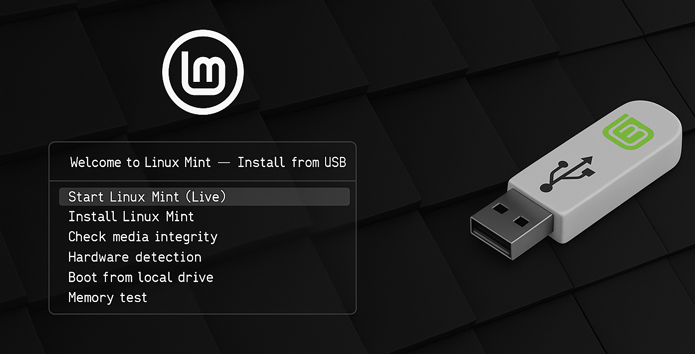
Option 1: Live USB (No Installation Required)
- Boot from the USB (don’t install yet)
- Create a Linux Mint USB drive (as described above)
- Use Linux Mint for a few hours
- Explore the applications, browse the web, check email
- If you like it, run the installer
- If you don’t, restart from Windows—no changes made
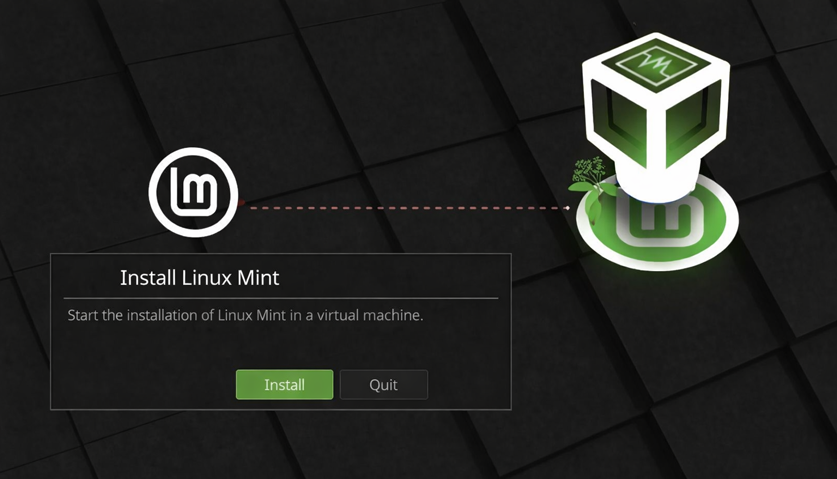
Option 2: Virtual Machine (Advanced but Safe)
Use software like VirtualBox (free) to run Linux Mint inside Windows as a separate window. You can try it without any risk.
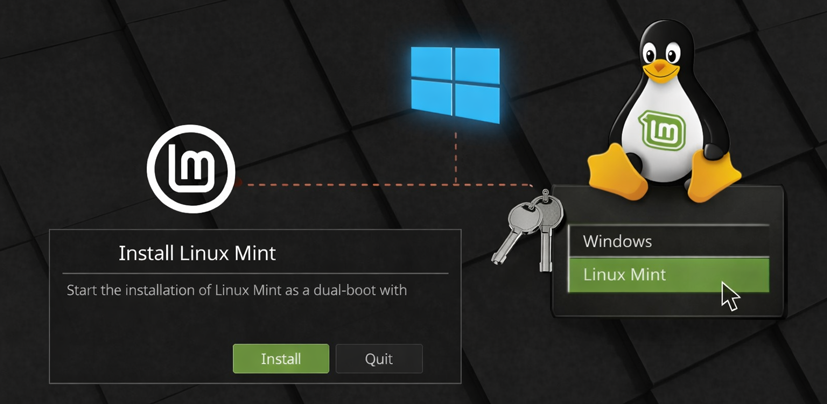
Option 3: Dual Boot
Install Linux Mint alongside Windows. On startup, choose which OS to use. Keep Windows as a safety net while you learn Linux Mint.
Our Recommendation: Start with the Live USB approach. Spend an afternoon exploring Linux Mint before making any permanent changes.
How Goinsta Repairs Can Help with Your Linux Transition
If you’re interested in switching to Linux Mint, we can help make the transition smooth:
Services We Offer:
- Pre-switch consultation – Assess whether Linux Mint is right for your needs
- Installation assistance – We can install Linux Mint for you remotely
- Data migration – Transfer your files from Windows to Linux Mint safely
- Training and support – Learn how to use Linux Mint confidently
- Dual-boot setup – Keep Windows and Linux Mint both available
- Software recommendations – Help you find Linux alternatives to your Windows programs
- Ongoing support – Tech support for Linux Mint issues
We understand that switching operating systems is a big decision. We’re here to make it as smooth and stress-free as possible.
The Bottom Line: Linux Mint Is Worth Considering
If you’re frustrated with Windows, tired of paying for upgrades, concerned about privacy, or just want a faster, cleaner computer experience, Linux Mint deserves serious consideration. It’s not perfect for every use case, but for everyday users, it often works better than Windows.
The beautiful part: You can try it completely free, with zero risk. Download a USB drive version and test it before committing to anything.
The honest part: Switching to Linux Mint means learning a new system. It’s not hard—many users find it easier than Windows—but it requires some adaptation. The payoff is usually worth it: a faster, more secure, more private computer that never forces updates and never wastes space on bloatware.
Ready to Make the Switch?
Whether you’re curious about Linux Mint, ready to install it, or need help making the transition, Goinsta Repairs is here to help.
📞 Call: 720-604-0834
📧 Email: care@goinstarepairs.com
💻 Visit: https://goinstarepairs.com
We can:
- Answer your questions about Linux Mint compatibility
- Assess your current system and needs
- Help with installation and setup
- Provide training on how to use Linux Mint
- Support you after the switch
Don’t stay frustrated with Windows. Explore your options. You might be surprised at how much better Linux Mint works for your needs.
Useful Resources:
- Linux Mint Official Site: https://linuxmint.com
- Linux Mint Community Forum: https://forums.linuxmint.com
- Linux Mint Installation Guide: https://linuxmint.com/download.php
- Rufus (USB creation tool): https://rufus.ie
- Balena Etcher (USB creation tool): https://www.balena.io/etcher/
One Comment
Comments are closed.