
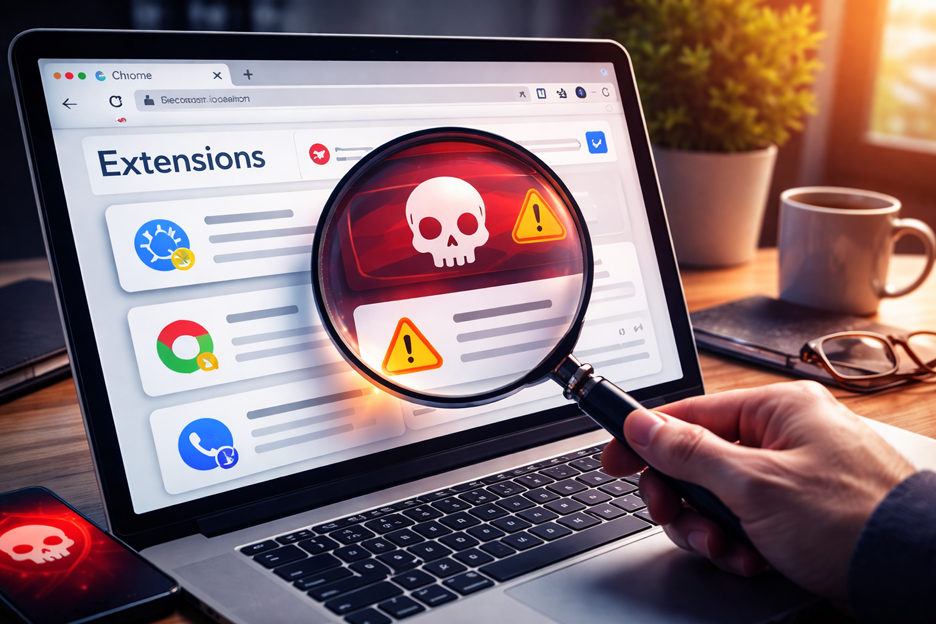
How to Find and Remove Malicious Browser Extensions: A Simple Guide for Everyone
Your browser might be silently spying on you. Here’s how to catch it—and what to do about it.
If you’ve noticed your browser acting strangely lately—showing more ads than usual, redirecting you to unfamiliar websites, or running slowly—you might have a malicious extension installed without even knowing it. The good news? Finding and removing these unwanted invaders is easier than you think, even if you’re not a tech expert.
What Are Malicious Browser Extensions, and Why Should You Care?
Browser extensions are little programs that add features to your web browser. Some are helpful—like password managers or grammar checkers. But some are dangerous.
Malicious extensions are fake or compromised add-ons that hide inside your browser and:
- Track everywhere you go online
- Steal your passwords and personal information
- Redirect you to suspicious websites
- Display unwanted ads
- Monitor your banking and shopping habits
- Capture sensitive information like credit card details
The scary part? Many of these extensions look legitimate. They have good reviews, verified badges, and promise to do useful things. But behind the scenes, they’re collecting data about you to sell to advertisers or worse.
Recent security researchers discovered that malicious extensions disguised as everyday productivity tools—like color pickers, weather apps, and video speed controllers—infected over 2.3 million users across Chrome and Edge browsers. These extensions were watching people’s every move online, tracking their websites, and even hijacking their browsers to redirect them to malicious sites.
The Warning Signs Your Browser Might Be Compromised
Before you dive into checking your extensions, ask yourself: Have you noticed any of these changes?
- Increased pop-up ads appearing on every website
- Unwanted redirects to unfamiliar websites when you click links
- Slower browser performance or your computer running sluggishly
- Changed settings like a different search engine or homepage that you didn’t change
- Extensions you don’t remember installing
- More data usage than normal on your internet connection
- Unexpected activity on your online accounts (emails, banking, shopping sites)
If any of these sound familiar, it’s time to audit your extensions.
Step-by-Step Guide: How to Find Malicious Extensions in Chrome
Don’t worry—this is completely safe and straightforward. Follow these steps carefully.
Step 1: Open Your Extensions Page
- Open Google Chrome
- In the address bar at the very top, type:
chrome://extensions/and press Enter - This will show you a complete list of every extension installed in your browser
Step 2: Turn On Developer Mode to See Extension IDs
The number-and-letter code next to each extension is called an “Extension ID.” This helps identify suspicious extensions.
- Look at the top right corner of the Extensions page
- Find the toggle switch labeled “Developer mode” and turn it ON
- Now you’ll see a long string of letters and numbers below each extension name—that’s the Extension ID
Step 3: Search for Suspicious Extensions
If security researchers have identified malicious extensions, they publish the Extension IDs. Here’s how to check if you have any:
- Press Ctrl+F (on Mac, use Cmd+F) to open the search box
- Copy and paste one of the suspicious Extension IDs from a security alert (for example:
eagiakjmjnblliacokhcalebgnhellfi) - The page will search and highlight the ID if it’s installed
- If it says “No results found,” you don’t have that malicious extension
Note: To find lists of known malicious extensions, search online for recent security alerts or check reputable cybersecurity websites like Malwarebytes, Kaspersky, or KoiSecurity.
Step 4: Check Extensions You Don’t Recognize
Beyond known malicious extensions, manually review your installed extensions:
- Go through your extension list one by one
- Ask yourself: Do I remember installing this? Do I actually use it?
- Look for extensions with vague names that don’t clearly say what they do
- Be suspicious of extensions with no reviews, very few reviews, or all negative reviews
Step 5: Remove Suspicious Extensions
Found something suspicious?
- Locate the extension you want to remove
- Click the red “Remove” button on the extension’s card
- A confirmation message will appear—click “Remove” again
- Done! The extension is now gone
How to Do the Same in Microsoft Edge
The steps are nearly identical since Edge is based on the same Chromium technology as Chrome.
Step 1: Open Your Extensions Page
- Open Microsoft Edge
- In the address bar, type:
edge://extensions/and press Enter
Step 2-5: Follow the Same Process
The remaining steps are exactly the same as Chrome:
- Turn on Developer mode
- Search for Extension IDs
- Review installed extensions
- Remove suspicious ones
The process is so similar because both browsers use the same underlying technology.
What to Look For: Red Flags in Your Extensions
Even if an extension isn’t on a “malicious list,” certain warning signs should make you suspicious:
⚠️ Excessive Permissions
Check what access each extension is asking for:
- Click on any extension’s name (not the remove button)
- Click “Details” or “Permissions”
- Look at what the extension wants access to
- Ask yourself: Does a simple timer app really need access to my browsing history? Does a calculator need to read my emails?
Red flag examples:
- A calculator asking for access to all websites you visit
- A screenshot tool asking to read your clipboard
- A weather app asking for access to your cookies and passwords
- Any extension asking to see your browsing history when it doesn’t need to
⚠️ No Clear Purpose
- Vague names that don’t say what they do
- No description or a description that’s confusing
- Very few or mostly negative reviews
- Recently created with millions of downloads (unrealistic growth)
⚠️ Changes to Your Browser Settings
- Your homepage changed without your permission
- Your search engine switched to something unfamiliar
- Extensions keep reappearing after you remove them
- You can’t find the remove button or it won’t delete
⚠️ Suspicious Behavior
- Clicking links takes you to unexpected websites
- Search results look different than normal
- Excessive ads popping up everywhere
- Your internet speed drops noticeably
If you see these warning signs, remove the extension immediately.
After You Remove a Malicious Extension: The Cleanup
Removing the extension is just the first step. Malicious extensions may have already collected information about you. Here’s what experts recommend:
Clear Your Browsing Data and Cookies
These are small files that websites and extensions use to track you.
In Chrome:
- Click the three dots menu (top right)
- Select “Settings”
- Click “Privacy and security” on the left
- Click “Clear browsing data”
- Select the time range “All time”
- Check the boxes for: Cookies, Cached images/files, and Browsing history
- Click “Clear data”
In Edge:
- Click the three dots menu (top right)
- Select “Settings”
- Click “Privacy and security” on the left
- Click “Clear browsing data”
- Follow the same steps as Chrome
Why? This removes tracking information the malicious extension may have collected.
Change Your Passwords
If you’re really concerned:
- Change the passwords for your email, banking, and shopping accounts
- Use a password manager (like Bitwarden or 1Password) to create strong, unique passwords
- Make sure each account has a different password
Check Your Accounts for Strange Activity
- Log into your email account and check for unauthorized access
- Check your bank and credit card accounts for suspicious charges
- Review your shopping site accounts for unexpected orders
- Look at your Google account activity (google.com/myactivity) for sign-ins from unfamiliar locations
Run a Security Scan (Optional)
Consider running a free malware scan:
- Use Windows Defender (built into Windows) or Malwarebytes (free version)
- These can catch other malware that might be on your computer
How to Stay Safe Going Forward
Now that you’ve cleaned up, here’s how to avoid malicious extensions in the future:
✅ Only Download from Official Stores
- Chrome extensions from the Chrome Web Store (chrome.google.com/webstore)
- Edge extensions from the Edge Add-ons Store or Chrome Web Store
- Never install extensions from random websites or download links
✅ Read Reviews Before Installing
- Check the number of reviews and ratings
- Be skeptical of extensions with very few reviews or many negative ones
- Look for verified publishers and badges
- Read recent reviews—old reviews from years ago might not be relevant
✅ Review Permissions Carefully
Before installing any extension:
- Check what permissions it’s asking for
- Ask yourself: Does this extension need this access to do what it promises?
- A simple tool should ask for minimal permissions
- If an extension asks for way more permissions than it should need—don’t install it
✅ Keep Your Extension List Clean
- Regularly review your installed extensions
- Delete extensions you don’t use anymore
- The fewer extensions you have, the smaller your attack surface
- Aim to keep only extensions you actually use daily
✅ Keep Your Browser Updated
- Chrome and Edge regularly release security updates
- Set your browser to update automatically
- These updates patch security holes that malicious extensions might exploit
✅ Use a Password Manager
- A password manager stores your passwords securely
- It won’t autofill passwords into fake websites (malicious extensions try to steal these)
- Popular options: Bitwarden (free), 1Password, LastPass
Common Questions About Malicious Extensions
Q: Could I have already been hacked if I had a malicious extension?
A: Maybe. It depends on how long it was installed and what permissions it had. That’s why changing your passwords and checking your accounts is important. But most malicious extensions collect browsing data rather than launching full-scale hacks.
Q: Do I need antivirus software to protect against malicious extensions?
A: Antivirus helps, but it’s not foolproof. The best defense is you—carefully reviewing what you install and checking your extensions regularly.
Q: Why do legitimate-looking extensions turn malicious?
A: Cybercriminals often publish genuine, helpful extensions first. They build up thousands or millions of users, positive reviews, and trust. Then they push an update containing malicious code. By that point, you’ve already installed it.
Q: Is removing the extension enough, or do I need to reinstall Windows?
A: In most cases, removing the extension is enough if you also clear your browsing data and change your passwords. You don’t need to reinstall Windows unless you suspect a more serious malware infection (like ransomware).
Q: Can I get a malicious extension back after I remove it?
A: If you deleted it and Google/Microsoft have removed it from their stores, no. But if the extension is still in the store and your Chrome profile syncs to your account, it could reinstall if you didn’t remove it from your account settings. Permanently remove it by going to your Chrome/Edge sync settings.
When to Get Professional Help
You can handle most malicious extension problems yourself using this guide. But consider calling a professional (like GoInsta Repairs) if:
- You can’t find the remove button for an extension
- The extension won’t delete even after you remove it
- Your browser settings keep changing on their own
- You find multiple suspicious extensions
- Your computer is running very slowly or freezing
- You notice other suspicious behavior beyond just extensions
A professional computer repair service can:
- Thoroughly scan your system for other malware
- Ensure everything is properly cleaned
- Restore your browser settings
- Give you peace of mind
Bottom Line: You Have the Power
Malicious extensions might be sneaky, but finding and removing them isn’t complicated. By following this guide, you’ve already taken a huge step toward protecting your privacy and security.
Here’s your action plan:
- ✅ Open your extensions page (chrome://extensions/ or edge://extensions/)
- ✅ Turn on Developer mode
- ✅ Review your installed extensions
- ✅ Remove anything suspicious
- ✅ Clear your browsing data
- ✅ Change your important passwords
- ✅ Stay vigilant going forward
Your browser is one of the most important tools you use every day. It deserves to be safe and secure. If you ever feel overwhelmed or unsure, don’t hesitate to reach out to a professional—that’s what we’re here for.
Stay safe out there!
Have you found suspicious extensions on your computer? Share your experience in the comments below. Or if you need help, contact GoInsta Repairs—we’re here to keep your technology running smoothly and securely.
Published by GoInsta Repairs – Your local computer repair experts in Littleton, Co