
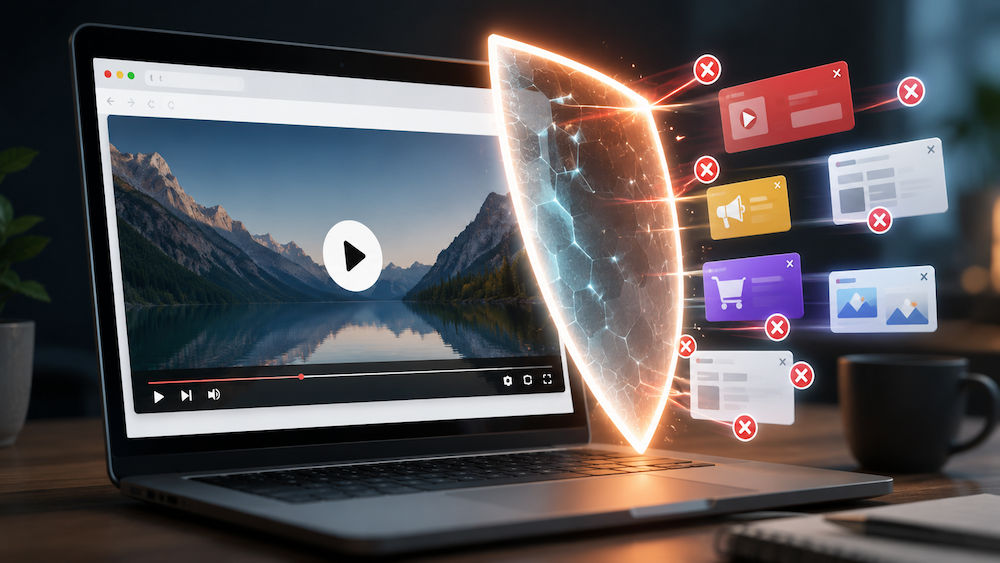
DuckDuckGo Blocks YouTube Ads by Default: What to Know
If YouTube ads have felt longer, more frequent, and harder to skip lately, you’re not imagining it. Frustration with YouTube’s ad load has been building for years — and this week, DuckDuckGo decided to do something about it. The company’s browser can now block most YouTube video ads automatically, with no extra downloads, extensions, or subscriptions required.
What Did DuckDuckGo Actually Announce?
On July 8, 2026, DuckDuckGo rolled out a new feature called YouTube Ad Blocking. It stops most ads that play before a video starts, as well as the ones that interrupt playback partway through.
The feature is already turned on by default for most users on iPhone, Windows, and Mac, as long as the DuckDuckGo browser is updated to the latest version. Android users will need to turn it on manually for now:
- Open the DuckDuckGo app
- Go to Settings
- Tap Ad Blocking
- Enable YouTube Ad Blocking
DuckDuckGo says automatic enrollment for Android users is coming soon.
How Does It Actually Work?
Rather than building an ad blocker completely from scratch, DuckDuckGo is using filter lists maintained by the uBlock Origin community — the same open-source project behind one of the web’s most popular ad-blocking extensions. DuckDuckGo layers its own compatibility rules on top, aiming to catch YouTube’s ads while keeping the rest of the site working normally.
One trade-off worth knowing: because the browser has to intercept ads before they load, videos may take a little longer to start buffering. Once playback begins, it should run smoothly.
Don’t Confuse This With Duck Player
DuckDuckGo already had a separate privacy tool for YouTube called Duck Player, and the two are easy to mix up:
- Duck Player is a distraction-free, theater-style viewer that strips out tracking cookies and personalized recommendations.
- YouTube Ad Blocking works on the regular YouTube website and removes video ads, while keeping your watch history and playlists intact.
You can actually turn both on at once for the most stripped-down viewing experience YouTube currently allows.
The Catch (Because There’s Always One)
Before you get too excited, a few things are worth knowing:
- Mobile users, take note: if a YouTube link opens the official YouTube app instead of the website, none of this works. The video has to open inside the DuckDuckGo browser itself.
- It’s not bulletproof: YouTube frequently changes how it delivers ads, so any ad blocker — this one included — can stop working for a while until its filter lists catch up.
- It goes against YouTube’s rules: YouTube’s terms of service technically prohibit ad blockers, and Google has a long history of pushing back on them, sometimes with warnings or restricted playback until ads are allowed or Premium is purchased.
Should You Actually Switch Browsers for This?
That depends on how much YouTube ads bother you, and how comfortable you feel trying something new. DuckDuckGo isn’t even the first browser to offer this — Brave and Opera already block most YouTube ads by default too. If ads are genuinely ruining your viewing experience and paying roughly $14 a month for YouTube Premium isn’t in the budget, it’s a reasonable, free option worth trying.
Just keep in mind: switching your default browser, moving over saved passwords and bookmarks, and troubleshooting anything that doesn’t transfer cleanly is exactly the kind of small tech hurdle that trips people up.
When a “Simple” Browser Switch Turns Into a Headache
Here’s how it usually plays out: someone installs a new browser or ad blocker to fix one problem, and ends up with a new one instead — bookmarks that didn’t import, a browser that suddenly feels sluggish, or a nagging worry about whether that “ad blocker” they downloaded is actually legitimate. Fake ad-blocking extensions that are secretly malware are a real and common trick, so always download DuckDuckGo directly from its official website or your phone’s app store.
If any of that sounds familiar, you don’t have to sort it out on your own.
Fast Computer Repairs, One Call Away! Goinsta Repairs can remotely set up your new browser, transfer your data safely, confirm that any extension you’re using is legitimate, and make sure your whole system runs the way it should — without you needing to leave your chair. Call 720-604-0834 or book a remote session today.
Frequently Asked Questions
Is DuckDuckGo’s YouTube ad blocking safe to use?
Yes. It relies on the same open-source filter lists used by other reputable ad blockers, with no separate extension required. Just make sure you download the DuckDuckGo browser from its official website or your device’s app store to avoid fake copycat apps.
Will this get my account banned from YouTube?
There’s no evidence that individual accounts get banned for this. YouTube’s terms of service do technically prohibit ad blockers, though, and Google has previously responded to other ad blockers with warnings or temporary playback restrictions — so it’s not entirely risk-free, just not typically an account-level punishment.
Does this work in the YouTube app on my phone?
No. It only works when you watch videos on the YouTube website inside the DuckDuckGo browser, not inside the separate YouTube app.
What if I try it and something on my computer stops working right?
That’s what we’re here for. Call Goinsta Repairs at 720-604-0834 and we’ll take a look remotely, without putting your data or your time at risk.
Ad-supported YouTube has been getting harder to sit through for a while now — and however you choose to deal with it, we’re just a call away if the fix ends up causing more friction than it solves.