

Watch YouTube Without Ads, Learn How
Ad-Free YouTube Watching Has Never Been Easier
Tired of interrupting ads ruining your YouTube experience? Whether you’re scrolling through educational videos, enjoying music playlists on YouTube Music, or catching up on your favorite content creators, constant advertisement interruptions can be frustrating and time-consuming. The good news? Brave Browser offers a built-in, completely free solution that requires no extensions, no subscriptions, and no complicated setup.
Brave is a privacy-focused browser with an integrated ad blocker that automatically blocks YouTube ads across all your devices—Mac, Windows, iPhone, and Android. Unlike third-party ad-blocking extensions that Google continuously targets and users must manually install, Brave’s native ad-blocking technology is built directly into the browser’s core, making it remarkably effective and reliable. In this comprehensive guide, Goinsta Repairs walks you through exactly how to configure Brave Browser on every major operating system to enjoy completely ad-free YouTube and YouTube Music streaming.
Why Brave Browser Stands Out: The Technology Behind Ad-Free YouTube
Before diving into the setup instructions, let’s understand what makes Brave different from other browsers. Brave uses sophisticated pattern recognition and advanced filtering technology to identify and block ads before they even load on your device. This isn’t a simple blocklist—Brave’s ad-blocking engine is built on proven filtering technology that’s been refined over years.
Brave’s Shields feature operates differently from traditional browser extensions. While Google has repeatedly restricted ad-blocking extensions on Chrome, Brave’s built-in system remains effective because it’s integrated at the browser level. The browser uses open-source filtering lists including Easylist and Easyprivacy, which are automatically maintained and updated. This means you get continuous protection without lifting a finger.
More importantly, Brave works completely free. There’s no premium subscription required, no paying for an ad-free YouTube experience, and no worrying about YouTube terminating your account. Brave simply delivers a cleaner, faster browsing experience where video ads, pre-roll ads, mid-roll ads, and end-card ads are all blocked.
Configuring Brave Browser on Mac: Step-by-Step Setup Guide
Downloading and Installing Brave on macOS
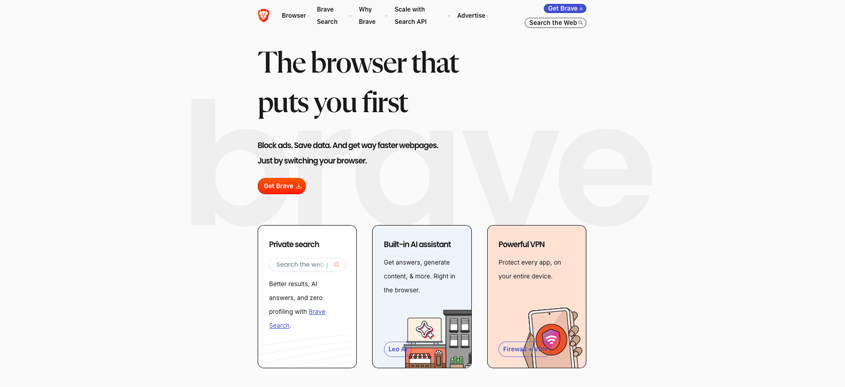
Getting started with Brave on your Mac is straightforward. Begin by visiting brave.com in your current browser. Click the prominent “Get Brave” button, and the installer will download automatically. You’ll receive a .dmg file in your Downloads folder. Double-click this file to open the installation window, where you’ll see the Brave icon and an Applications folder shortcut. Simply drag the Brave icon to the Applications folder to complete the installation.
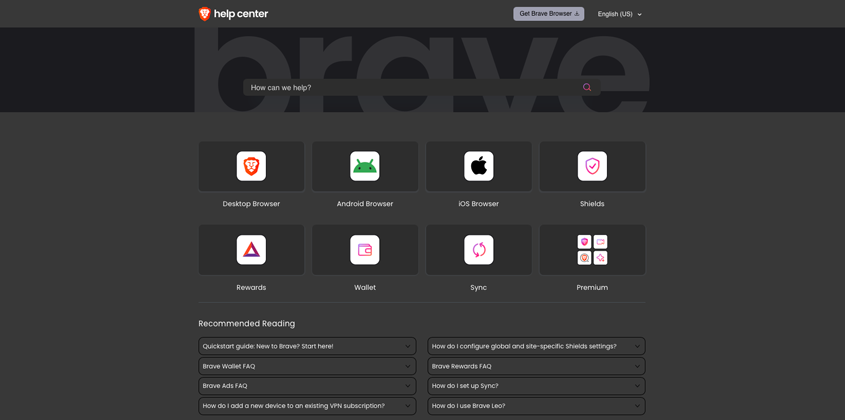
Once installed, launch Brave by finding it in your Applications folder or using Spotlight search (press Command+Space and type “Brave”). On first launch, you’ll see an option to import bookmarks and settings from your previous browser. You can skip this if you prefer a fresh start.
Enabling Shields for YouTube Ad Blocking on Mac
Now that Brave is installed, let’s configure it to block YouTube ads automatically:
- Click the Menu Button: In the top-right corner of Brave, you’ll see three horizontal lines (the hamburger menu). Click this.
- Navigate to Settings: From the dropdown menu, select “Settings.”
- Select Shields: In the left sidebar, you’ll see various settings categories. Click on “Shields” to access privacy and ad-blocking configurations.
- Configure Trackers & Ads Blocking: Scroll down in the Shields section until you see “Trackers & Ads Blocking.” By default, this is set to “Standard,” which blocks most ads effectively. For maximum ad-blocking (including all first-party ads), you can select “Aggressive,” though Standard is usually sufficient for YouTube.
- Verify Settings are Applied: Shields are enabled by default globally, but you can check that they’re active for YouTube specifically. When you visit YouTube, look for the Brave Shields icon (a lion’s head shield) in the address bar. If it shows as activated, you’re protected.
Using YouTube on Mac with Brave
After configuration, simply visit YouTube.com in Brave and start watching. You’ll immediately notice the absence of pre-roll ads, mid-roll ads, and sidebar advertisements. Videos start playing instantly, and your experience is significantly smoother. For YouTube Music lovers, the same ad-blocking applies—enjoy your music streaming without commercial interruptions.
Configuring Brave Browser on Windows: Complete Installation and Setup
Downloading and Installing Brave on Windows 10/11
Setting up Brave on Windows is equally simple. Open your current browser and navigate to Brave.com. The website automatically detects your Windows version and offers the appropriate installer. Click “Download Brave,” and you’ll receive a BraveBrowserSetup.exe file.
Locate the downloaded file in your Downloads folder and double-click it. Windows may display a User Account Control prompt asking for permission, click “Yes” to proceed. The installation wizard will guide you through the process. Accept the default settings unless you have specific preferences, and the installer will complete automatically within two to five minutes.
Once complete, Brave will launch automatically. You’ll see a welcome screen asking whether you want to set Brave as your default browser and if you want to import settings from your previous browser. Both are optional—configure according to your preference.
Enabling Shields for Ad-Free YouTube on Windows
- Open the Settings Menu: Click the three-line hamburger menu in the top-right corner of Brave.
- Access Settings: Select “Settings” from the dropdown menu.
- Click Shields: In the left sidebar, locate and click “Shields.”
- Adjust Trackers & Ads Blocking: Scroll to find “Trackers & Ads Blocking.” The default “Standard” setting blocks most YouTube ads effectively. Switch to “Aggressive” if you want comprehensive ad-blocking (blocking first-party ads as well).
- Confirm Protection is Active: Visit YouTube.com and look for the shield icon in the address bar to confirm Shields are active.
Experiencing Ad-Free YouTube on Windows
Your Windows PC is now configured to block all YouTube ads. Open YouTube and enjoy uninterrupted viewing. The performance improvement is immediately noticeable videos load faster, the interface feels cleaner, and your browsing experience is streamlined.
Configuring Brave Browser on iPhone: Mobile Ad-Free Streaming
Installing Brave from the App Store
For iPhone users, the setup process is equally straightforward. Open the Apple App Store and search for “Brave Browser.” You’ll find the official Brave app featuring the orange Brave logo. Tap “Get,” then “Install,” and authenticate using Face ID or your Apple ID. The app downloads and installs automatically.
Setting Up Brave on Your iPhone
Launch Brave after installation. You’ll see the welcome screen with options to import data from other browsers this is optional. If you want to bookmark YouTube for easy access, you can do so directly in Brave, though the browser will automatically optimize the YouTube experience.
Enabling YouTube Ad Blocking on iPhone
The exceptional news for iPhone users: YouTube ad blocking on Brave happens automatically with zero additional configuration. Unlike macOS and Windows where you access Shields settings, Brave on iOS applies ad-blocking by default across all websites, including YouTube.
To verify everything is working:
- Open YouTube: In Brave on your iPhone, navigate to Youtube.com or music.Youtube.com
- Open Brave and visit YouTube.com (avoid the YouTube app — it can’t block ads).
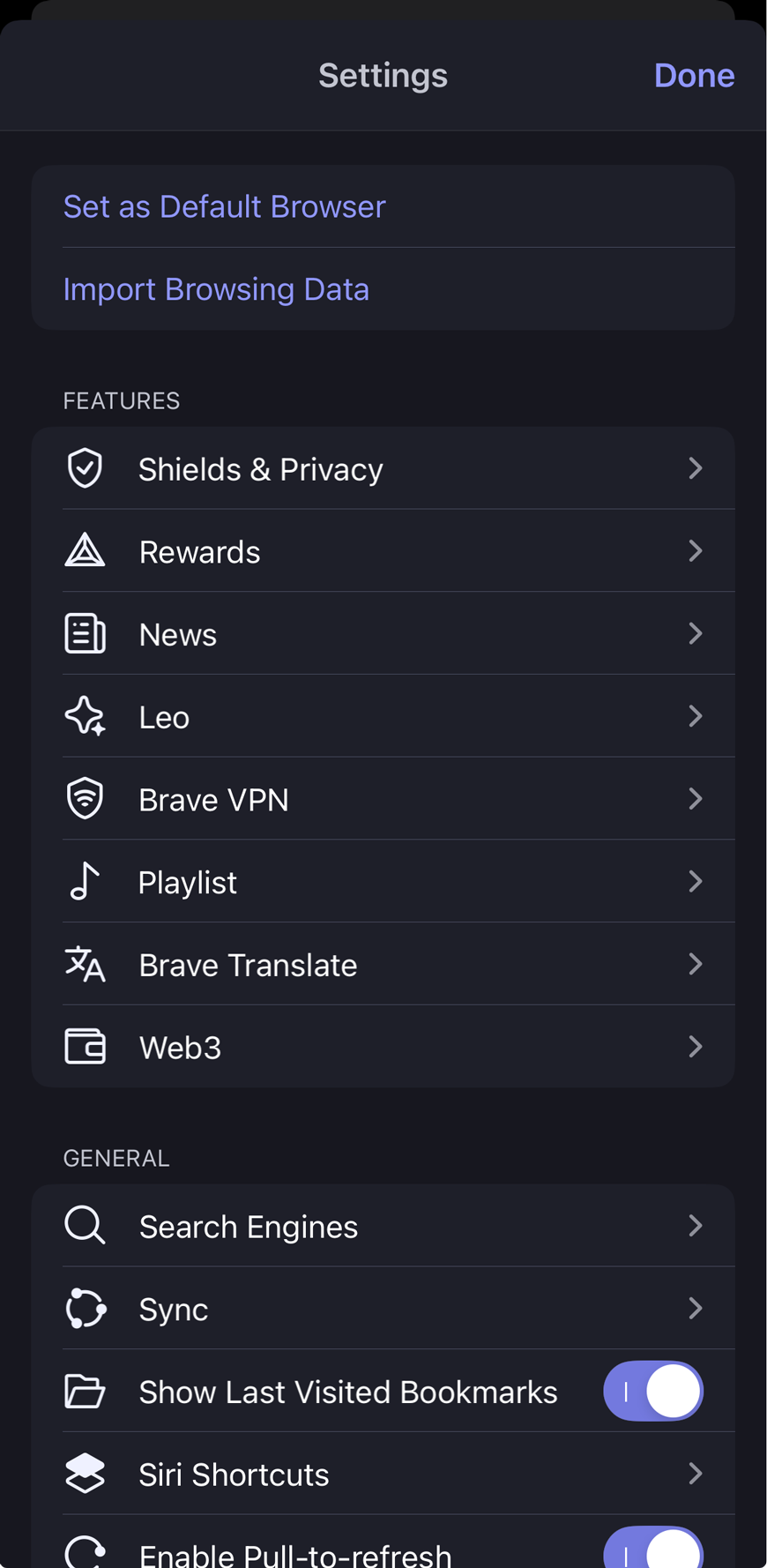
- Tap the three dots and go to Settings → Shields & Privacy.
- Turn on Shields and ensure ad blocking is enabled.
- Refresh the video page.
Advanced Feature: Background Audio on iPhone
One of Brave’s standout features for mobile users is background audio playback. Unlike the official YouTube app which stops playing when you leave the app, Brave allows YouTube videos to continue playing audio in the background. Here’s how to enable this:
- Open Brave Menu: Tap the three horizontal lines at the bottom-right of the screen.
- Go to Settings: Scroll down and tap “Settings.”
- Select Media: Look for the “Media” option and tap it.
- Enable Background Audio: Toggle on the “Enable Background Audio” option.
Now you can play YouTube Music or watch videos, minimize the app or even turn off your screen, and audio will continue playing—perfect for music streaming, podcasts, or lecture videos. This feature alone makes Brave the superior choice for iPhone users who currently rely on YouTube Music.
Configuring Brave Browser on Android: Complete Mobile Setup
Installing Brave on Android Devices
Android users can download Brave from the Google Play Store. Open Play Store, search for “Brave Browser,” and tap “Install.” The official Brave app (by Brave Software Inc.) will download and install automatically to your device.
Initial Setup on Android
After installation, launch Brave. You’ll see the welcome screen with optional settings to import data from other browsers. Complete this setup or skip to the main browsing experience.
Enabling YouTube Ad Blocking on Android
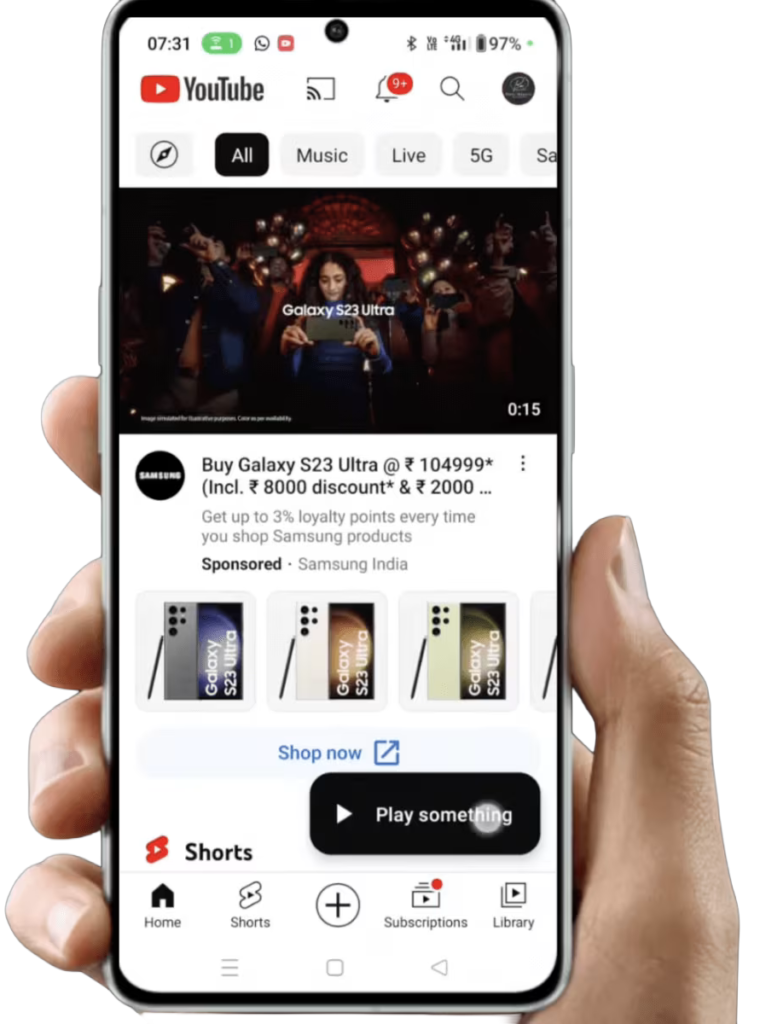
Just like iPhone, YouTube ad-blocking is automatically active on Brave for Android with no configuration necessary. Open YouTube.com or search for videos directly, and you’ll experience completely ad-free viewing from day one.
Enabling Background Audio on Android
While iPhone offers full video background playback, Android’s Brave focuses on audio background playback (a limitation of how Android handles background apps). However, this is perfect for YouTube Music and podcast enthusiasts. Here’s how to enable it:
- Open the Menu: Tap the three-dot menu icon at the bottom-right of the Brave interface.
- Navigate to Settings: Scroll down and tap “Settings.”
- Select Media: Find the “Media” option and tap it.
- Enable Background Audio: Toggle on “Enable Background Audio.”
Now when you play YouTube Music or audio-based content, you can switch to other apps, lock your phone, or turn off the screen while the audio continues uninterrupted. This transforms YouTube Music into a true background streaming service without paying for YouTube Premium.
Important Note: Embedded Videos
Please note that while Brave blocks ads effectively on YouTube.com, embedded YouTube videos on other websites may not be ad-blocked. If an embedded video shows ads, this is a limitation of how embedded content is handled across browsers. However, visiting YouTube directly through the browser will provide the full ad-free experience.
Troubleshooting Common Issues
YouTube Shows “Ad Blockers Violate Terms of Service” Message
Occasionally, YouTube may display a warning message even though Brave is actively blocking ads. This typically occurs if you have conflicting extensions installed or if your browser cache contains YouTube cookies from previous sessions. Solution:
- Update Content Filters: Go to Settings > Shields > and manually update your content filter lists.
- Clear Cookies: Clear all cookies and cache related to YouTube specifically.
- Log Out and Back In: Sign out of your YouTube account and log back in.
- Check for Extensions: Ensure you don’t have additional ad-blocking extensions that might conflict with Brave Shields.
Some Ads Still Appearing on YouTube
While Brave is remarkably effective, YouTube occasionally tests new ad delivery methods. If you notice sporadic ads:
- Switch to Aggressive Mode: In Shields settings, change “Trackers & Ads Blocking” to “Aggressive.”
- Update Brave: Ensure you’re running the latest version of Brave (Settings > About).
- Disable JavaScript Blocking Temporarily: If Aggressive mode breaks YouTube functionality, return to Standard mode.
Background Audio Not Working on Mobile
If background audio suddenly stops working:
- Restart the Browser: Close Brave completely and reopen it.
- Toggle Setting Off/On: In Settings > Media, toggle “Enable Background Audio” off, wait 10 seconds, then toggle it back on.
- Restart Your Device: A full device restart often resolves mobile OS-related issues.
- Check OS Updates: Ensure your Android or iOS is fully updated, as operating system updates sometimes affect background playback.
Why Choose Brave Over Other Solutions?
Superior to VPN-Based Ad Blockers
VPN-based ad blocking services are slower and less effective than Brave’s native solution. They also route your traffic through external servers, reducing privacy compared to Brave’s local filtering.
Better Than Browser Extensions
Traditional ad-blocking extensions have become increasingly problematic. Google has systematically restricted their functionality on Chrome, and they require manual maintenance and updates. Brave eliminates this headache with built-in, automatically-updated protection.
More Effective Than YouTube Premium
While YouTube Premium ($14.99/month or $169/year) removes ads, Brave provides the same ad-free experience completely free. You’re not paying a subscription—you’re simply using a more intelligent browser.
Privacy-Focused Design
Beyond ad-blocking, Brave includes tracker blocking, HTTPS enforcement, fingerprinting protection, and more. You get a comprehensive privacy upgrade, not just ad removal.
Getting Started: Your Action Steps
Ready to enjoy ad-free YouTube? Here’s your quick action plan:
For Mac Users:
- Download Brave from Brave.com
- Install and launch the browser
- Visit Settings > Shields and confirm ad-blocking is enabled
- Navigate to YouTube and enjoy ad-free content
For Windows Users:
- Visit brave.com/download and download the installer
- Run BraveBrowserSetup.exe and complete installation
- Open Settings > Shields and verify ad-blocking configuration
- Visit YouTube and experience uninterrupted viewing
For iPhone Users:
- Download Brave from the Apple App Store
- Launch the app
- Visit YouTube.com (ad-blocking is automatic)
- For background audio: Settings > Media > Enable Background Audio
- Enjoy music and videos that continue playing in the background
For Android Users:
- Install Brave from the Google Play Store
- Launch the application
- Access YouTube.com (ad-blocking works automatically)
- For background audio: Menu > Settings > Media > Enable Background Audio
- Stream music and podcasts with the screen off
Conclusion: The Future of Ad-Free Browsing
The internet doesn’t have to be cluttered with advertisements. By choosing Brave Browser and following the simple configuration steps outlined in this guide, you’re taking control of your online experience. Whether you’re on Mac, Windows, iPhone, or Android, Brave delivers fast, private, ad-free browsing across all your devices.
At Goinsta Repairs, we’re committed to helping you get the most from your technology. From browser configuration to device repairs and optimization, we’re here to ensure your digital life runs smoothly. If you have questions about Brave, YouTube ad-blocking, or any other tech setup needs, don’t hesitate to reach out to our knowledgeable team.
Start using Brave today and reclaim the uninterrupted browsing experience you deserve. No extensions. No subscriptions. No compromises. Just pure, ad-free content.
FAQ: Common Questions About Brave and YouTube Ad-Blocking
Q: Is Brave Browser safe to use?
A: Yes. Brave is open-source, regularly audited, and developed by a legitimate company. It’s used by millions worldwide and is completely safe.
Q: Will my YouTube account get banned for using Brave?
A: No. YouTube terms of service target ad-blocking extensions, not browsers. Brave is a legitimate browser, and using it won’t violate any terms.
Q: Can I still log into YouTube with Brave?
A: Absolutely. You can log into your YouTube account normally and access all your playlists, subscriptions, and saved videos.
Q: Does Brave work on YouTube TV or YouTube Premium features?
A: Brave blocks ads, but YouTube Premium-exclusive features (offline viewing, higher quality) aren’t included. You get the core ad-free experience free.
Q: How often should I update Brave?
A: Brave updates automatically by default. Check Settings > About to ensure you’re on the latest version, which improves ad-blocking effectiveness.
Q: Can I use multiple browsers?
A: Yes. You can use Brave for YouTube and another browser for other activities. However, once you try Brave, you’ll likely prefer it across all your browsing.