
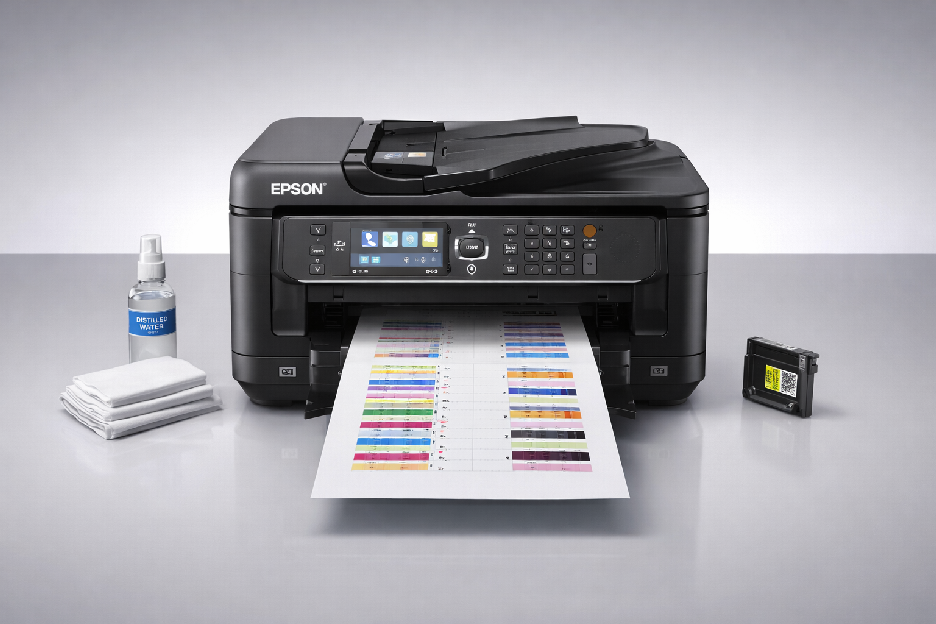
Quick Guide: Troubleshooting a Clogged Epson WorkForce Pro WF-7620 Printer
Is your Epson WF-7620 printing with streaks, missing colors, or blank pages? Clogged print heads are the most common cause. Here’s how to fix it fast.
Quick Visual Check First
Print a nozzle check pattern to confirm clogs:
- Press Home button on printer panel
- Select Setup > Maintenance > Nozzle Check
- Follow on-screen prompts to print test pattern
- Check results: Solid lines = good. Gaps or missing colors = clogged
Solution #1: Run Head Cleaning Cycle (Try This First)
From Printer Panel:
- Press Home > Setup > Maintenance
- Select Head Cleaning
- Choose All Nozzles (or specific color if only one is clogged)
- Press Start and wait 2-3 minutes
- Print nozzle check again to verify improvement
From Computer (Windows):
- Open Control Panel > Devices and Printers
- Right-click Epson WF-7620 > Printing Preferences
- Click Maintenance tab > Head Cleaning
- Follow wizard prompts
Important: Don’t run cleaning more than 3 times in a row—it wastes expensive ink. If 2-3 cycles don’t work, try Solution #2.
Solution #2: Power Cleaning (For Stubborn Clogs)
The WF-7620 has a more aggressive cleaning mode:
- Press Home > Setup > Maintenance
- Select Power Cleaning
- Warning: This uses significantly more ink—only use if standard cleaning failed
- Follow prompts and wait 3-5 minutes
- Print nozzle check pattern
Let printer rest 6 hours after power cleaning before testing again. Ink needs time to settle.
Solution #3: Manual Printhead Cleaning (Advanced)
If automated cleaning fails, manual cleaning may help:
What You’ll Need:
- Distilled water (not tap water)
- Lint-free cloths or coffee filters
- Small shallow dish
- Rubber gloves
Steps:
- Turn off printer and unplug from power
- Open printer cover and lift ink cartridge holder arm
- Remove all ink cartridges carefully
- Locate printhead (the component under cartridges with nozzles)
- Dampen lint-free cloth with distilled water
- Gently wipe printhead surface where nozzles are visible (don’t scrub hard)
- For severe clogs: Place printhead face-down in shallow dish with 1/4″ distilled water for 5-10 minutes
- Pat dry gently with clean lint-free cloth
- Reinstall printhead and cartridges
- Run head cleaning cycle from printer menu
- Print nozzle check pattern
⚠️ Caution: Printhead damage voids warranty. If uncomfortable, skip to professional service.
Solution #4: Soak Method (Last Resort for DIY)
For dried ink blocking nozzles:
- Remove printhead following manual instructions
- Create cleaning solution: 50% distilled water + 50% isopropyl alcohol (91%)
- Place folded paper towel in shallow dish
- Pour solution onto towel until saturated
- Place printhead nozzle-side down on wet towel
- Cover with plastic wrap to prevent evaporation
- Let soak 8-12 hours or overnight
- Rinse printhead gently with distilled water
- Pat dry and reinstall
- Run cleaning cycle and test
Prevention Tips to Avoid Future Clogs
- Print at least once per week (even just a test page)
- Never let printer sit unused for 2+ weeks without printing
- Use genuine Epson ink when possible (third-party ink clogs more often)
- Keep printer powered on (standby mode runs maintenance cycles automatically)
- Store in climate-controlled environment (avoid extreme temperature/humidity)
When to Call Professional Help
- Cleaning cycles don’t improve print quality after 3 attempts
- Error codes appear related to printhead failure
- You’re uncomfortable performing manual cleaning
- Printer is under warranty (DIY cleaning may void it)
- You need the printer working urgently for business
Goinsta Repairs offers:
- Professional printhead cleaning and restoration
- Genuine Epson replacement parts when needed
- On-site service in major metros (Denver, Houston, Dallas, Austin, Miami, Orlando, Tampa, NYC, Atlanta, Minneapolis, Las Vegas, and more)
- Remote diagnostics to determine if repair is worth the cost vs. replacement
Call: 1-720-604-0834
Online: goinstarepairs.com
Cost vs. Replace Decision
WF-7620 Printhead Replacement:
- Genuine Epson printhead: $150-200
- Professional installation: $75-100
- Total repair cost: $225-300
New comparable printer: $300-400
Verdict: Repair makes sense if printer is under 3 years old and otherwise functioning well. If printer has other issues or is 4+ years old, replacement may be smarter.
Most WF-7620 clogs resolve with 1-2 standard head cleaning cycles. Start simple, escalate only if needed, and don’t hesitate to get expert help for stubborn problems.